
The MolDraw screen
Short answer: The screen has a top bar, a tools row, a left tool rail, an atom palette, a ring bar and the canvas. A 3D panel sits on the right.
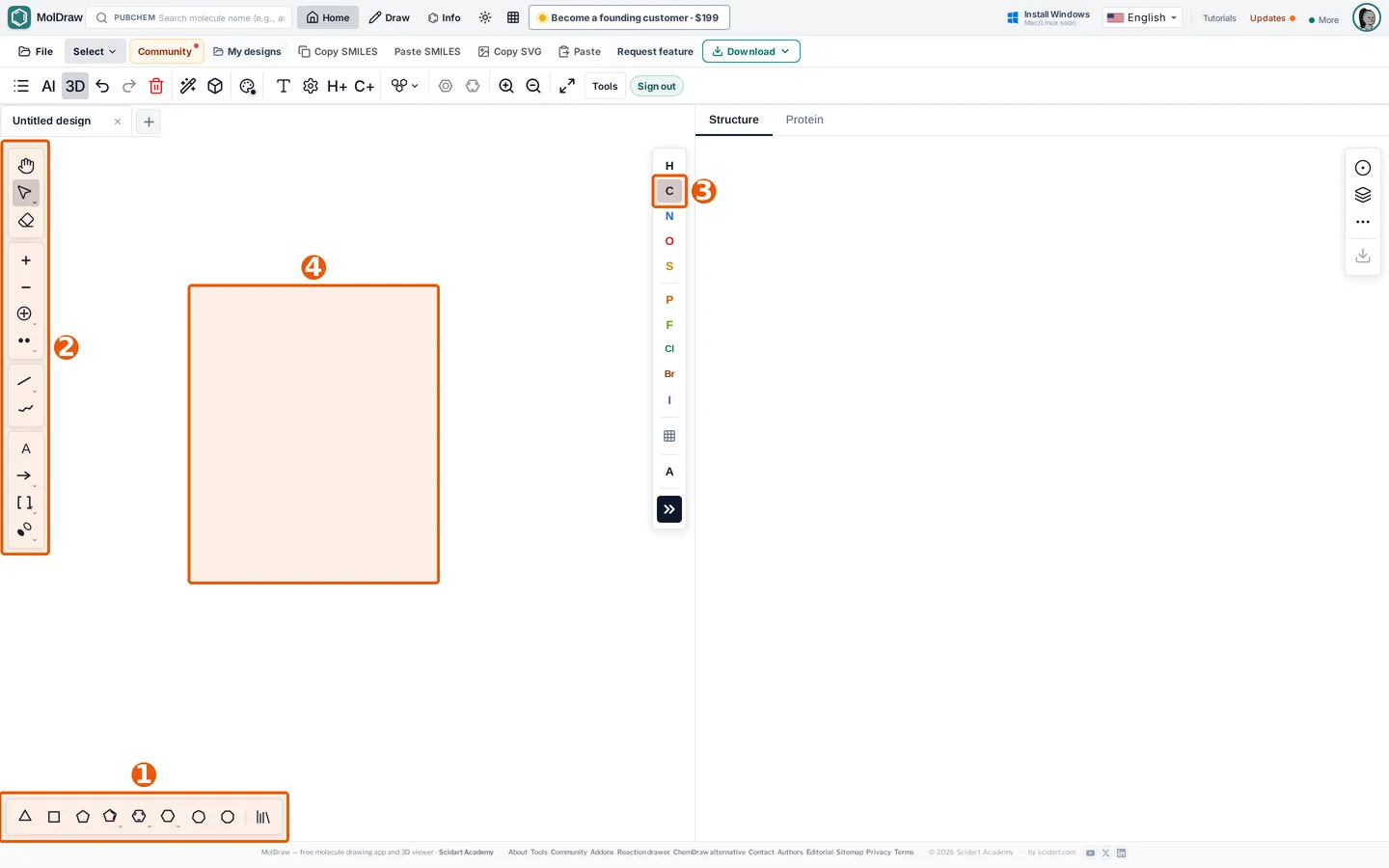
Top bar#
The top bar has My designs, the search box, and the Home, Draw and Info tabs. It also has the language menu, Updates and your account.
Editor row#
This row holds File, Select, Community, Copy SMILES, Paste SMILES, Copy SVG, Paste and Download.
Ribbons#
Home, Draw and Style are ribbons. Only one is open at a time.
- Home has Clean up, hydrogens, 3D Clean Up, aromatize and zoom.
- Draw has the pencil, shapes, images and glassware.
- Style sets font, bond width and the structure look.
Left tool rail#
The rail holds the tools you use most. You get select, erase, charges, lone pairs, bonds, chains, atom labels, arrows, brackets and orbitals. A small arrow under a button opens more choices.
Atom palette and ring bar#
The atom palette next to the canvas has H, C, N, O, S, P, F, Cl, Br and I. The grid button opens the full periodic table. The ring bar at the bottom has rings from three to eight atoms and the Library.
Canvas and 3D panel#
The canvas has no edges. Pan with the hand tool or by holding Space and dragging. The 3D panel shows your molecule in 3D. Hide it with the 3D button.
Questions and answers
How do I hide the 3D panel?
Click the 3D button in the tools row. Click it again to bring it back.
Where is the periodic table?
Click the grid button in the atom palette, under I.