Look Up Drug Targets and Bioactivity from Your Drawing with the ChEMBL Plugin
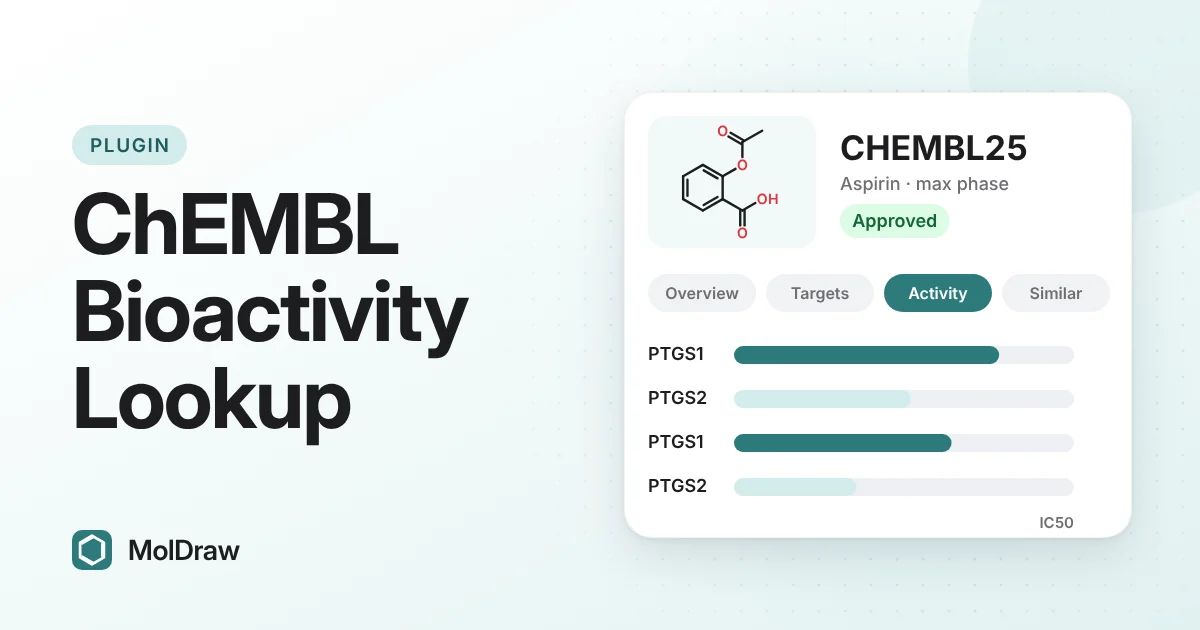
Short answer: Install ChEMBL from Settings › Plugins, draw a molecule (or type a name or ChEMBL ID), and press Lookup. You get the compound's ChEMBL record with its approval phase, the protein targets it was tested on, activity values such as IC50 and Ki, and similar compounds you can load back onto the canvas.
Why look up bioactivity while you draw?
A structure on its own tells you what a molecule is. Bioactivity data tells you what it does. If you are studying a drug, planning an analogue or teaching structure–activity relationships, the next question after drawing is usually "has this been tested, and against what?"
ChEMBL answers that question. It is a free, manually curated database of drug-like molecules run by EMBL-EBI, with millions of measured activity data points. The MolDraw plugin brings it next to your canvas, so you do not have to copy SMILES between browser tabs.
What the plugin shows
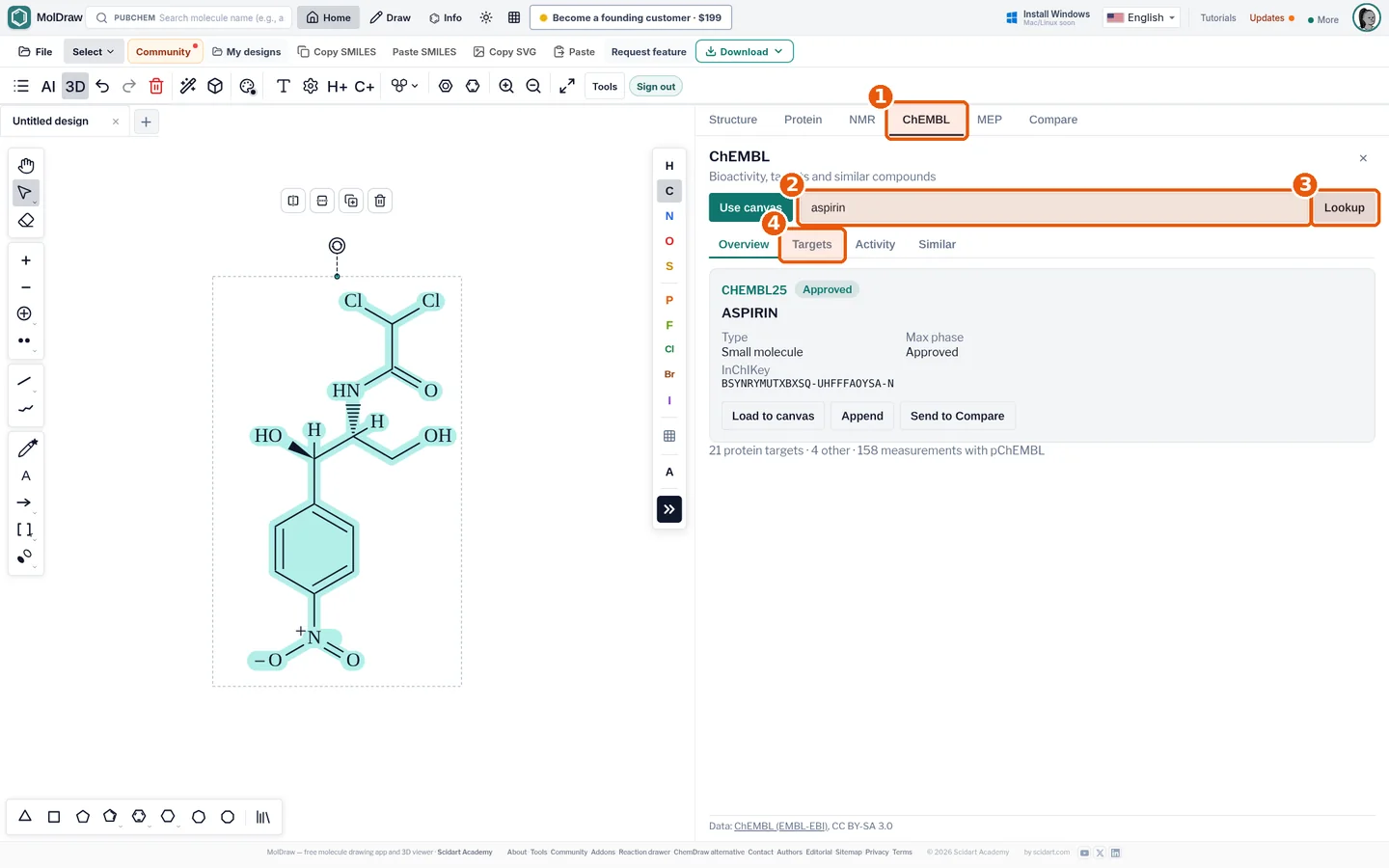
| Overview | Preferred name, ChEMBL ID, molecule type, maximum development phase (for example Approved) and InChIKey. |
|---|---|
| Targets | The proteins and other targets the compound was tested against, each linked to its ChEMBL target page. |
| Activity | Measured values such as IC50 and Ki, with the target, assay and source. |
| Similar | Look-alike compounds from ChEMBL. Load any of them onto the canvas. |
How to install the ChEMBL plugin
- Open the MolDraw editor and sign in. A free account is enough.
- Click Settings (the gear), then Plugins.
- Click Install next to ChEMBL. A ChEMBL tab appears in the analysis panel.
How to look up a molecule
- Draw the molecule, or leave the canvas empty if you will search by name.
- Open the ChEMBL tab.
- Press Use canvas to search for your drawing, or type a name (aspirin) or ChEMBL ID (CHEMBL25) in the query box.
- Press Lookup.
- Browse Overview, Targets, Activity and Similar.
- Keep working with a hit: Load to canvas replaces the drawing, Append adds it beside your structure, and Send to Compare opens it in the Compare molecules plugin.
Ways to use it in class and in the lab
- Teaching drug discovery: draw a well-known drug, show its approved status and real targets, then open Similar to discuss how small changes to a scaffold affect activity.
- Checking an idea: before you spend time on an analogue, see whether it or a close relative has already been tested.
- Finding starting points: use Similar on a hit, append a few neighbours to the canvas and compare them side by side.
- Screening with rules of thumb: pair the results with the Lipinski rule of five calculator and the drug-likeness calculator.
Tips for reliable results
- Search by drawing uses the InChIKey, which is exact. If nothing is found, check stereocentres, charges and salt forms, or search by name.
- Activity values come from many different assays. Compare them only within the same assay and conditions; follow the assay link for details.
- The plugin reads ChEMBL live, so it needs an internet connection.
New to chemical databases? Our free chemical databases guide explains when to use ChEMBL, PubChem, ChEBI and others.
Questions and answers
What is ChEMBL?
ChEMBL is a free, manually curated database of bioactive drug-like molecules run by EMBL-EBI. It holds over two million compounds and their measured activities against biological targets.
Is the MolDraw ChEMBL plugin free?
Yes. It uses ChEMBL's public web services. You only need a free MolDraw account to install it.
Can I search ChEMBL by drawing a structure?
Yes. Use canvas looks up the drawn molecule by its InChIKey, and the Similar tab finds related structures.
Why is my drawn molecule not found?
InChIKey matching is exact, so a missing stereocentre or a different charge or salt form gives a different key. Check stereochemistry and charges, or search by name or ChEMBL ID instead.